Getting around Paavya
The left rail, the top bar, search and the Add menu, and where each kind of work lives in the app.
Paavya is built around one question: what should your team do next on the bids that matter? Every screen sits in the same frame, so once you know the frame you can find anything.
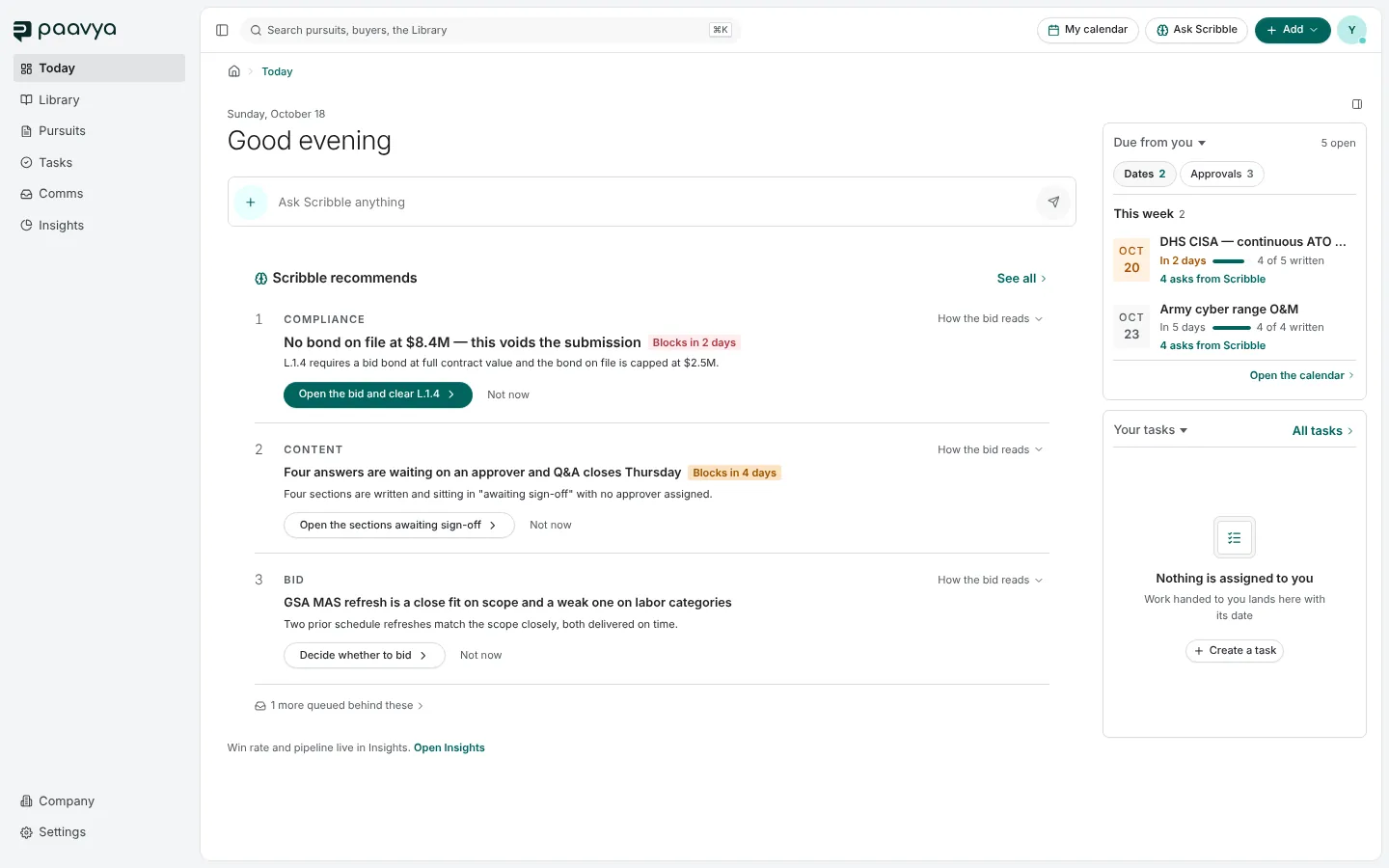
The left rail
The rail lists the places you work in, top to bottom:
| Place | What it is for |
|---|---|
| Today | What needs you first, what is due from you and your tasks. |
| Library | Your approved answers, the claims inside them and the documents that prove them. |
| Pursuits | Every bid, as a list or a board, and the buyers behind them. |
| Tasks | Work assigned to you, work you handed out and everyone's open items. |
| Comms | Your inbox of handoffs and approvals, direct messages, group chats and Scribble. |
| Insights | Win rate, pipeline and what your bidding record has taught you. |
Company and Settings sit at the foot of the rail. The button at the top left of the top bar folds the rail down to icons when you want more room. Inside a pursuit the rail folds on its own, so the bid gets the width.
Some places have a menu of their own, such as Settings, the Library's spaces and the sections of your company profile. When you open one, that menu takes the rail's place and a Back to app link appears at the top to return you.
The top bar
From left to right:
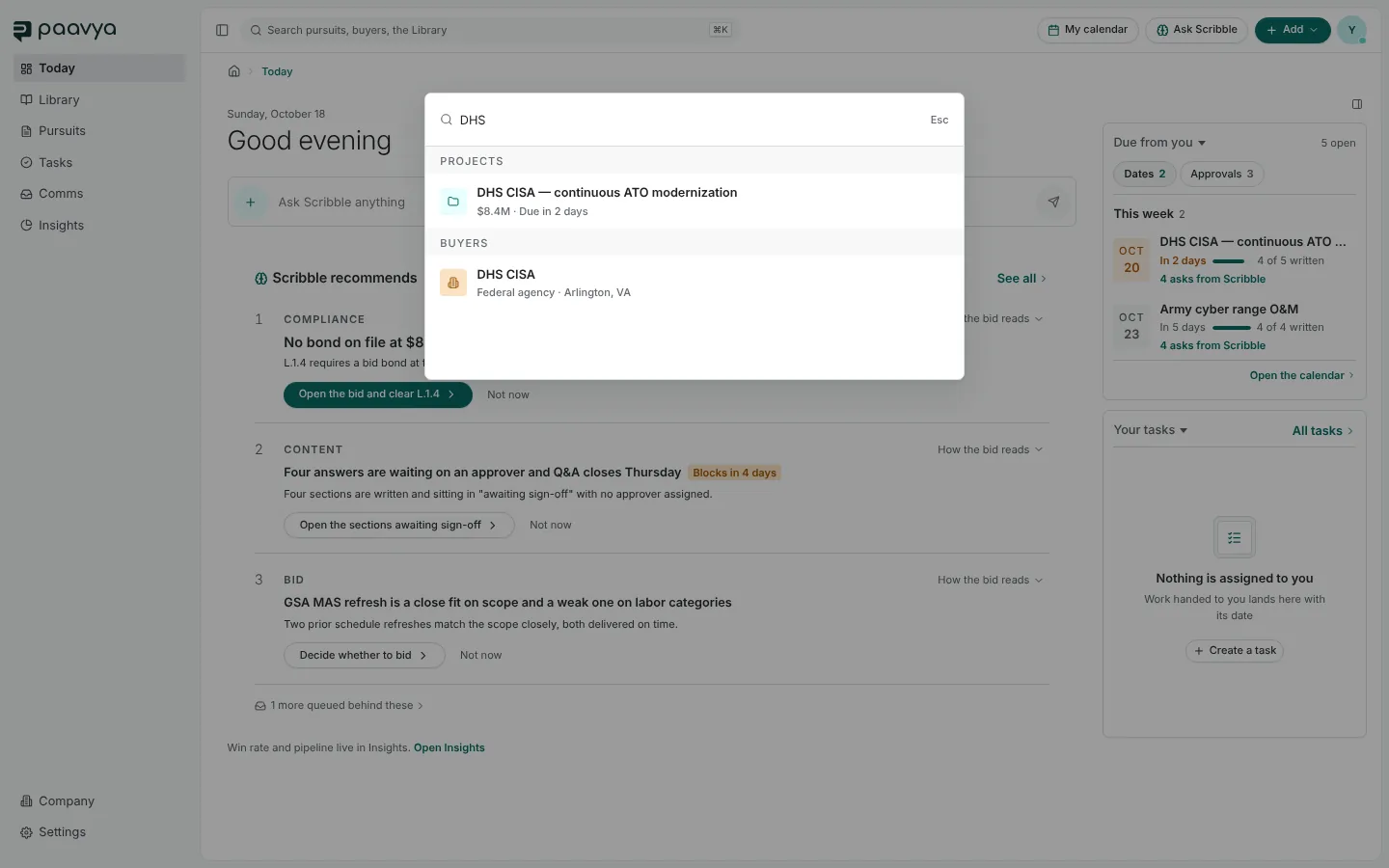
- Search. Press it, or ⌘K (Ctrl+K on Windows), to find a pursuit, a buyer, a person, a claim or a file by name.
- My calendar. Every deadline, milestone and task on one timeline. See My calendar.
- Ask Scribble. Opens Scribble in a panel beside the page you are on, already aware of the record in front of you. See Ask Scribble.
- Add. A menu of quick starts, described below.
- Your initials. Your account menu, where you also sign out.
The Add menu
Add is a short menu of doors to the places that already do the work. Nothing in it is a separate form.
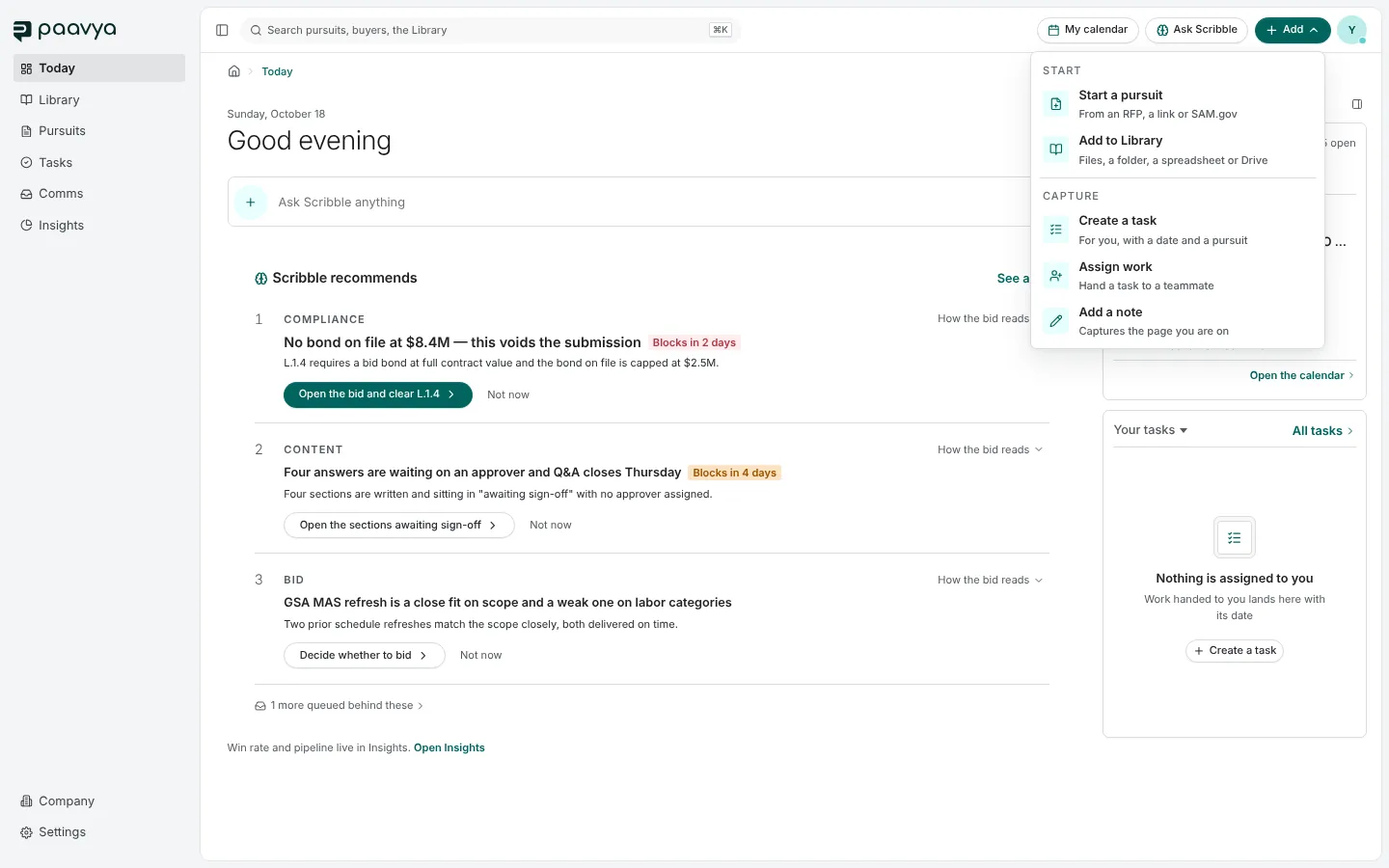
- Start a pursuit opens Start a pursuit, where a link, a document or a search becomes a new bid.
- Add to Library opens the Library's import panel for files, a folder, a spreadsheet or Google Drive.
- Create a task and Assign work open the add line on Tasks; Assign work opens it with the assignee menu ready.
- Add a note opens Notes beside the page, already labeled with where you are. See My Notes.
The trail at the top of every page
Under the top bar, a breadcrumb names where you are, starting from the place in the rail that is lit: for example Pursuits › DHS CISA — continuous ATO modernization › Decide. Each stop is a link back.
Side panels
Several pages carry a panel at the far right: Today's due dates and tasks, a pursuit's properties and stages, your company's checklist. The small panel button at the top right of the page hides or shows it, and Paavya remembers your choice for that page.
Pictures are from Paavya's demo workspace, so names, bids and figures are illustrative. Something here does not match what you see? Tell us, or ask Scribble in the app.