The drafting workspace
Write each section beside its requirements, your Library and Scribble, then see the whole package the buyer will receive.
Open drafting on Develop opens the drafting workspace: the full width of the screen, given to the response.
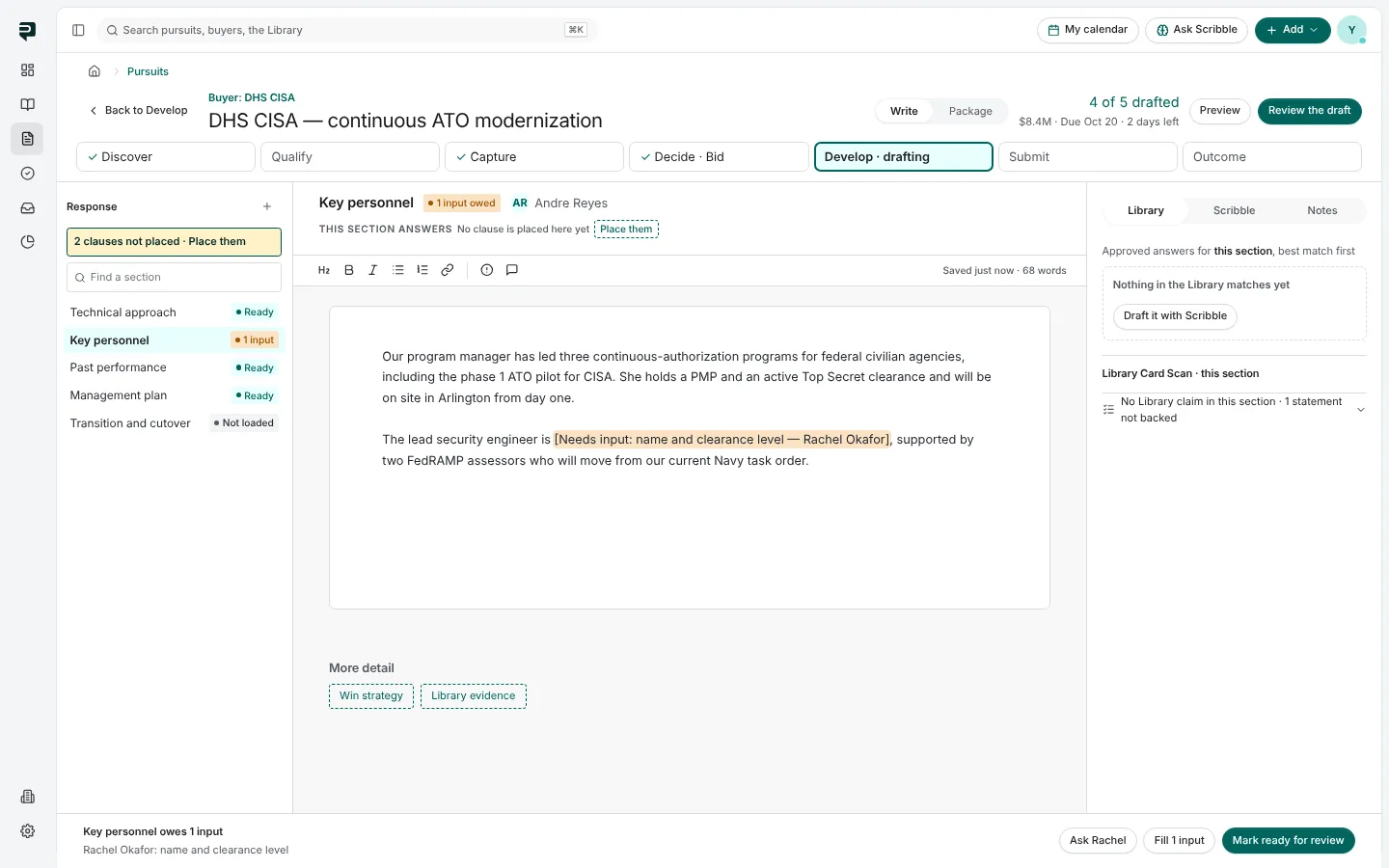
Across the top
Back to Develop, the pursuit's name, the Write · Package switch, how many sections are drafted, Preview and Review the draft. The seven stages run underneath.
Three columns
Response, on the left. Every section with its state: Ready, a count of inputs owed, Empty or Not loaded. Find a section, add one, and see clauses not yet placed in any section (Place them opens the plan).
The page, in the middle. The section's name and owner, and This section answers: the clauses from the solicitation this section must satisfy, pass/fail ones first. Below that, a formatting bar and the text itself.
- A pass/fail clause shows as its own box with Mark condition met.
- [Needs input: what — who] is how a missing fact is marked. Each marker is highlighted, counted, and blocks the section from being marked ready until it is filled.
- The editor saves as you go and says when it last saved.
Library, Scribble and Notes, on the right.
- Library lists approved answers that fit this section, best match first. Insert one and it is copied into your draft; the Library entry is not changed, and Paavya records that it was used.
- Scribble drafts or rewrites the section from the brief, and can draft one requirement at a time.
- Notes is the section's discussion with your team.
- Library Card Scan · this section checks each claim the section makes (a figure, a certification, a date) against your Library's evidence, and marks anything expired, contradicted or unbacked inline.
The docked bar
The bar at the foot belongs to the open section. It says what the section still owes and offers:
- Ask the person who owes an input, or Ask everyone to send each person one request for everything they owe.
- Fill the inputs you can answer yourself.
- Mark ready for review once nothing is owed.
Package
Package shows the response the way the buyer will receive it.
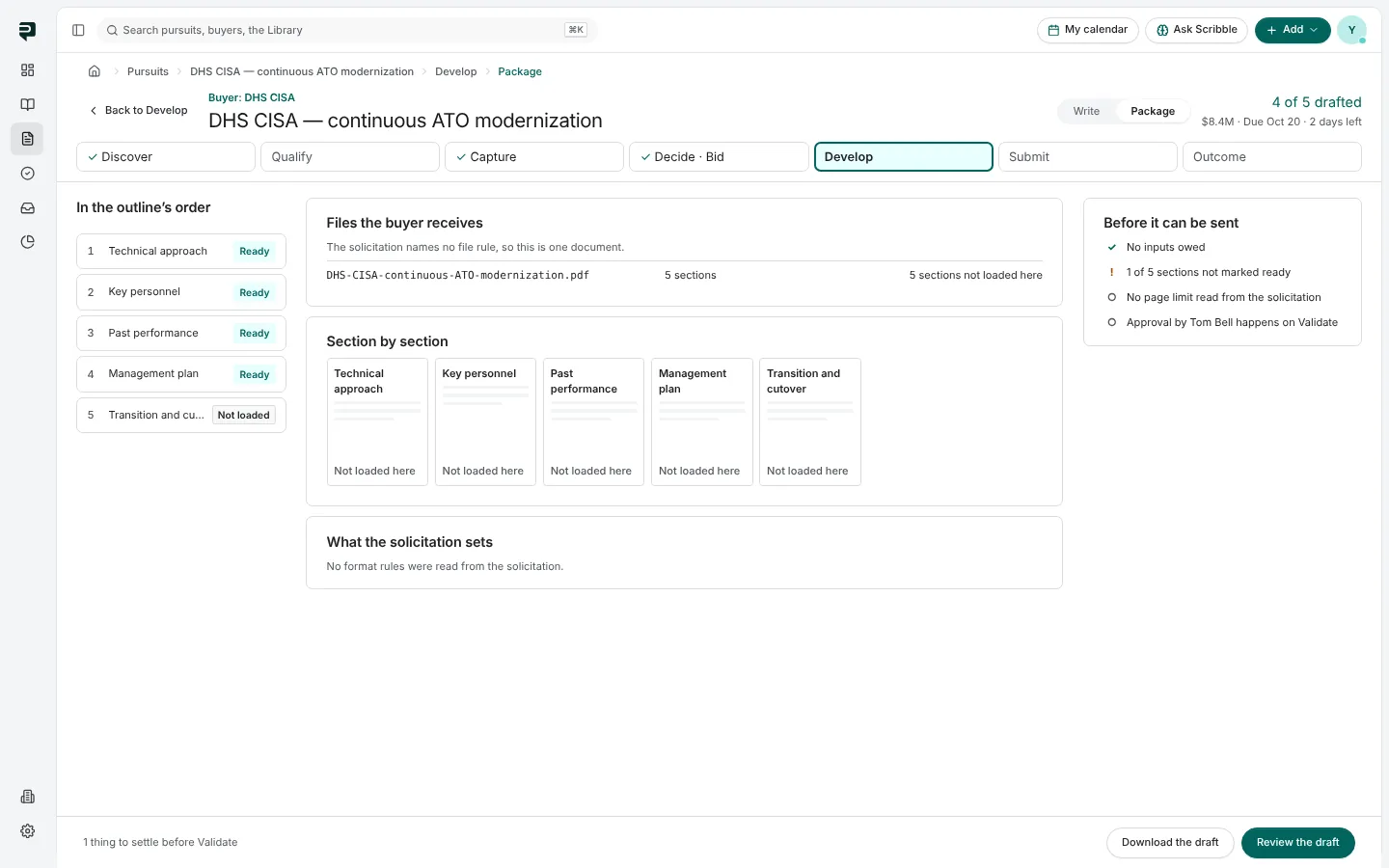
- In the outline's order, every section with its state.
- Files the buyer receives, named as the solicitation requires.
- Section by section, page use against any page budget.
- What the solicitation sets: format rules read from the solicitation.
- Before it can be sent: everything still open, such as sections not ready or the approval.
Download the draft exports it; Review the draft moves on to validation.
Pictures are from Paavya's demo workspace, so names, bids and figures are illustrative. Something here does not match what you see? Tell us, or ask Scribble in the app.